We now allow updates and improvements to the information shown on your Sharing Group’s listing. To begin the process, you’ll need an account. Try any email in the box below to see if you have one. If not, use the registration form. You can then submit changes to be manually approved.
Editor Login
Your email may already be in our system, so check here first.
Designated editors, log in by entering your email address above.
You will receive an email from contact@isao.org with a link to log in – no password required. Click the link to be returned to this page.
This email will probably get caught in your organization’s spam filters, be sure to check them all!
Designate an Editor
Access Listing
New accounts created here will automatically have access to the ISG list, and be able to submit revisions.
For existing accounts, our Listing Curator will need to manually assign your account to the role of ISG Listing Steward. If this is the case, coordinate with the Curator on this to get your role added.
1. Find your listing to edit
Using the button below, enter our admin panel, where you will be taken to the “Information Sharing Groups” tab. Find the ISG that you represent with the search box, or by sorting the Title column and browsing the results pages. You can “View” any of the other listings as well.
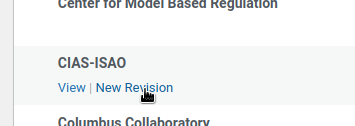
Feel free to click the “View” link that appears when hovering over any listing, to explore the way listings are currently presented. When you are ready, choose “Edit” or “New Revision”.
2. Fill in as much as possible
The form contains only a few required fields, marked by a red asterisk. While the rest are optional, please take the time to add as much information as you have.
Note: Logo is a required field. (If you leave a required field blank, and try to submit the form, you may lose all of your edits!)
Upload the nicest logo image you have – preferably with no margins or whitespace – it should be cropped so that the logo touches the edge on all four sides. Prefer at least 512x512px resolution. Prefer PNG format with transparent background.
3. Submit for review
Click the Preview button to see how your changes will look. The layout is subject to change.
Once you are sure everything is correct and exhaustive, click Submit for review.
We cannot approve your saved revision if you don’t submit it for review.
That’s it!